Trait Action Resolution: Webhooks vs. Event Queries
Process Set Display Name Action Response (Webhook)
Webhooks are the best practice way to track and capture disposition status of a trait action request.
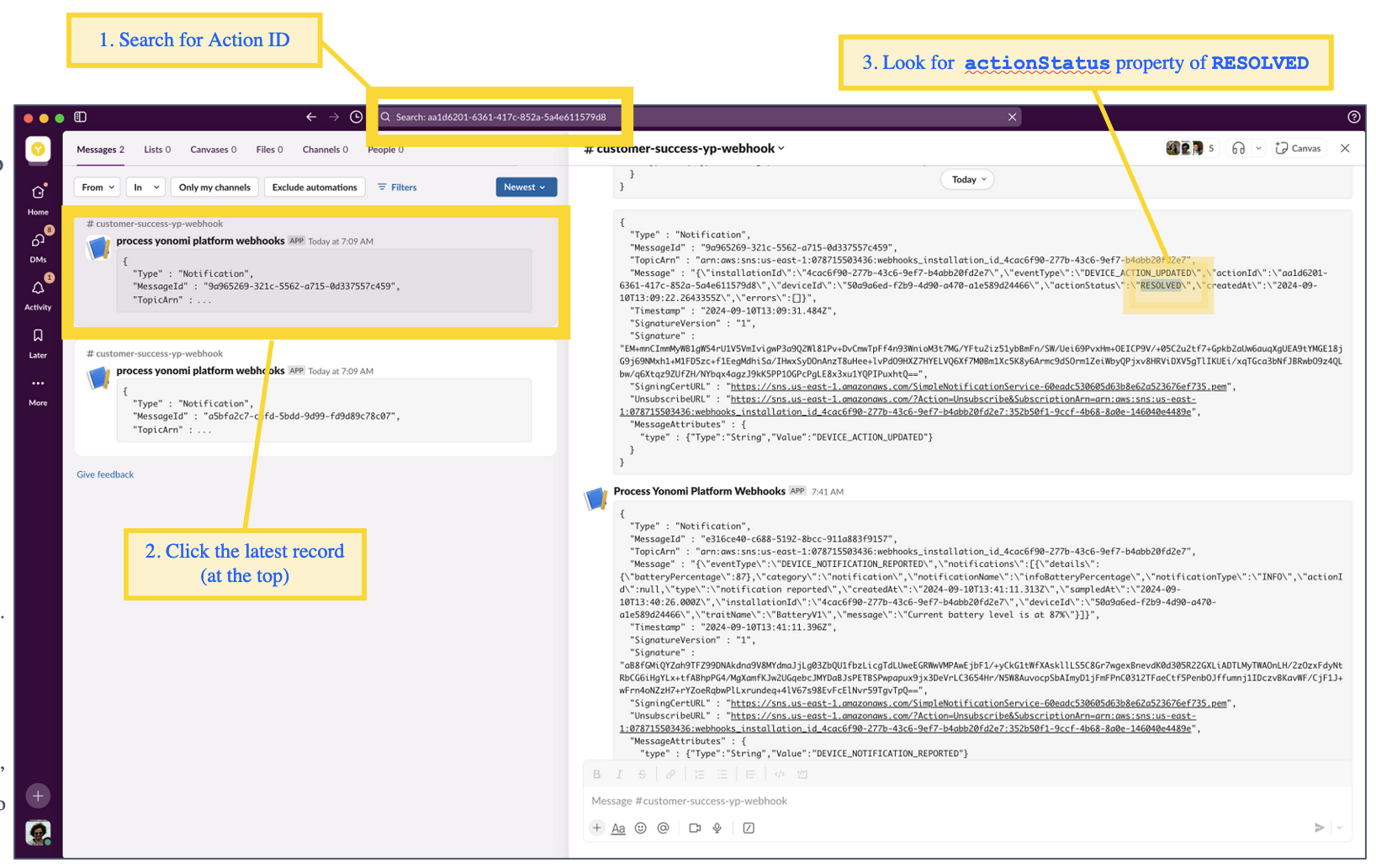
Our training webhook is set up to capture details and report them to Slack for easy search and viewing. To find the status of the request sent for training:
- Go to the Yonomi Workspace Slack channel to which used for capturing our webhooks
- Search for the Action ID from the previous request in the search bar
- Click on the latest message record found, which will be at the top of the list
- Review the message to find the actionStatus property. It will be set to RESOLVED for a successful request.
If the search does not yield multiple records for the action ID, your request was not sent successfully, you did not subscribe to receive DEVICE_ACTION_UPDATED events or the lock is offline. Reconnect the lock to WiFi and events will be sent; no need to resend the action request.
Historical Events/Polling: Query Result by Action ID (Request #17)

You can also get the status of the request using the GraphQL API. Run the “Get Status of Action Request to Set Display Name (using Action ID)” request to get the status of the last trait action request we made.
Note it reports the same detail as what was captured in webhook.
If the response to this request is empty it likely means one of the following:
- This request was not successfully sent (Unauthorized)
- You did not subscribe to receive DEVICE_ACTION_UPDATED events
- The lock is offline. Reconnect the lock to WiFi and events will be sent; no need to resend the action request.
Sidequest: Disconnect WiFi and Test Actions, Notifications
When a lock is disconnected, all trait action requests to a device - as well as notifications from a device – are queued for processing and dispatch once the device has reconnected to WiFi.
You can test this by:
- Manually disconnecting WiFi
- Sending a new action request (to queue an event) and/or turning a lock inside handle (to queue lock notifications)
- Reconnecting WiFi
Performing this test will not require a power cycle to reconnect a device to WiFi in production (Q2 2025)... But it might during our beta period.
Action! Set Auto-Lock Setting, Get Action Status (Request #18, 19)


Action! Get Credentials & Schedules (Request #20)

The response for this request will include a URL that links to the JSON formatted credentials and schedules payload for the lock.
Click on the URL from within postman to generate a new postman request.
Action! Get Credentials & Schedules (GET results from previous request)

Run this newly-generated request (GET.).
The response will be an empty JSON Payload representing a lock with no credentials or schedules set.
Next, we’ll use a 2-step action to set a credential in a lock along with a schedule so that we can operate the lock with a physical (or mobile) credential.
No need to save this request; it’s a snapshot in time that tells the state of the lock’s credentials and settings as the locks reports it right now.
On this page
- Trait Action Resolution: Webhooks vs. Event Queries